
System Settings - Security
From the Navigator go to Tools and Settings > System Settings.
In the Settings window that is displayed, select the Security node.
The settings here are system wide.
| Field | Explanation |
| Minimum Password Score | This refers to the complexity of the users' passwords. Note that information regarding the ‘score’ of passwords can be found via Navigator > User Security > User Maintenance > Users. Refer to: Setting up Security for Users . |
| Max login attempts |
By default this is set to 3. |
| Password Expiry (Days) | Enter the number of days before the Users Login Password expires and prompts the user to create a new Password. |
| Activate 'Security Groups' Security Model |
By default this option is not selected. Tick this option if you want the system to use the advanced Security Groups feature, in order to apply specific restrictions to relevant Users. |
| Enable Audit Login | Tick this box if you are using the Ready Pay Audit fucntion. |
Note: if the Activate 'Security Groups' Security Model setting is on (i.e. it is ticked - set to 'true') and you then switch it off by removing the tick (i.e. setting it to 'false'), a warning message will be displayed, asking you if you wish to proceed.
If you click 'Yes' this will remove all Assigned Security Groups restrictions and the system will revert to the standard security restrictions.
If you do not wish to do this, click 'No' to cancel the changes.
Password Score
The default value for the Minimum Password Score is 25.
When creating or editing a User Security account, Ready Pay will assess the password complexity and assign a score.
This can be demonstrated as follows:
- From the Navigator, select User Security | User Maintenance
- Expand the Users tree node
- Select one of the users in the list and the User Account details will be displayed on the right.
- Click on the
 button and a Set Password screen will be displayed.
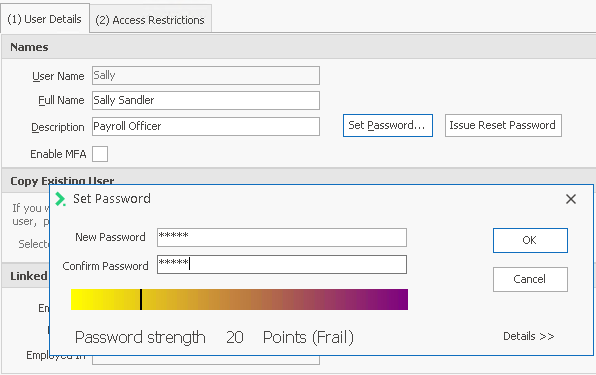
In this example, the password specified for user 'Sally' has been entered as 'payme'.
This has resulted in a password strength of 20 (Frail) and therefore the password will not be accepted.
 to see how a password score is calculated, and use the conditions on this screen to improve the security of passwords you specify: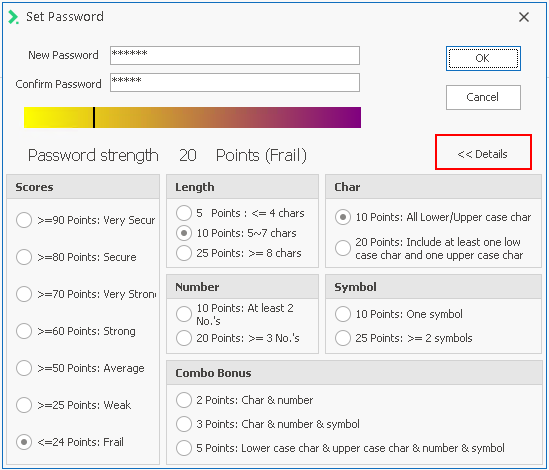
Return to System Preferences.